Parental Controls for Streaming Services: A Setup Guide
Learn how to set up parental controls on popular streaming services to ensure your children have a safe and age-appropriate viewing experience.
Guide prepared with AI assistance and automated source and link checks.
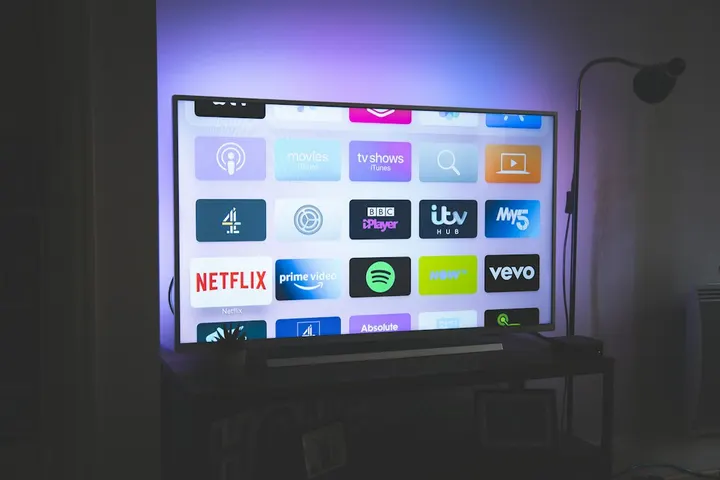
In today’s digital age, streaming services offer a vast library of content, making them a popular source of entertainment for families. However, not all content is suitable for all ages. Setting up parental controls is crucial for ensuring your children have a safe and age-appropriate viewing experience. This guide will walk you through the general steps to implement these controls.
Why Are Parental Controls on Streaming Services Important?
Parental controls act as a digital gatekeeper, helping you manage what your children can watch. They can prevent access to mature content, set viewing limits, and even restrict in-app purchases. This provides peace of mind, knowing your children are less likely to encounter inappropriate material. As UNICEF advises, establishing ground rules and using available safety features are key to keeping children safe online. Source
General Steps to Set Up Parental Controls
While each streaming service has its own interface, the general principles for setting up parental controls are quite similar. Here’s a common approach:
1. Create Separate User Profiles
Most streaming services allow you to create individual user profiles. This is the first and most important step. Create a profile for each child and ensure you have your own adult profile.
2. Access Parental Control Settings
Once profiles are set up, navigate to the ‘Account Settings’ or ‘Profile Settings’ section. This is usually where you’ll find options for parental controls or content restrictions.
3. Set Content Ratings and Restrictions
Streaming services typically use age-based rating systems (e.g., G, PG, PG-13, TV-Y, TV-G, TV-PG, TV-14, TV-MA). For each child’s profile, you can set the maximum content rating they are allowed to view. For younger children, you might restrict content to ‘G’ or ‘TV-Y’ ratings, while older children might have access to ‘PG’ or ‘TV-G’ content.
4. Implement PIN Protection
To prevent children from switching to an adult profile or altering their own settings, set up a PIN. This PIN should be unique and known only to you. You can often set a PIN for specific profiles or for accessing certain types of content.
5. Manage Watch History and Recommendations
Some services allow you to clear watch history or disable personalized recommendations for children’s profiles. This can help prevent them from being exposed to content outside of their set restrictions based on what others in the household have watched.
6. Consider Screen Time Limits (If Available)
While not all streaming services offer built-in screen time limits, some do. If available, explore these options to help manage how long your children spend watching content. Alternatively, you can use built-in phone tools like Google Family Link or Apple Screen Time to manage overall device usage. For more on managing screen time, read our guide on how to manage child screen time.
Important Considerations
- Regularly Review Settings: As your children grow, their needs and the content available will change. Periodically review and adjust parental control settings.
- Open Communication: Talk to your children about why these controls are in place. Explaining your reasoning can foster trust and understanding. Consider creating a family media plan together.
- Educate About Online Safety: Parental controls are a tool, but education is key. Teach your children about online safety and what to do if they encounter something inappropriate.
- Stay Updated: Streaming services frequently update their features and interfaces. Familiarize yourself with any changes to ensure your controls remain effective.
By taking the time to set up and maintain parental controls on streaming services, you can create a safer and more enjoyable viewing environment for your entire family.
Foto di Nicolas J Leclercq su Unsplash.